
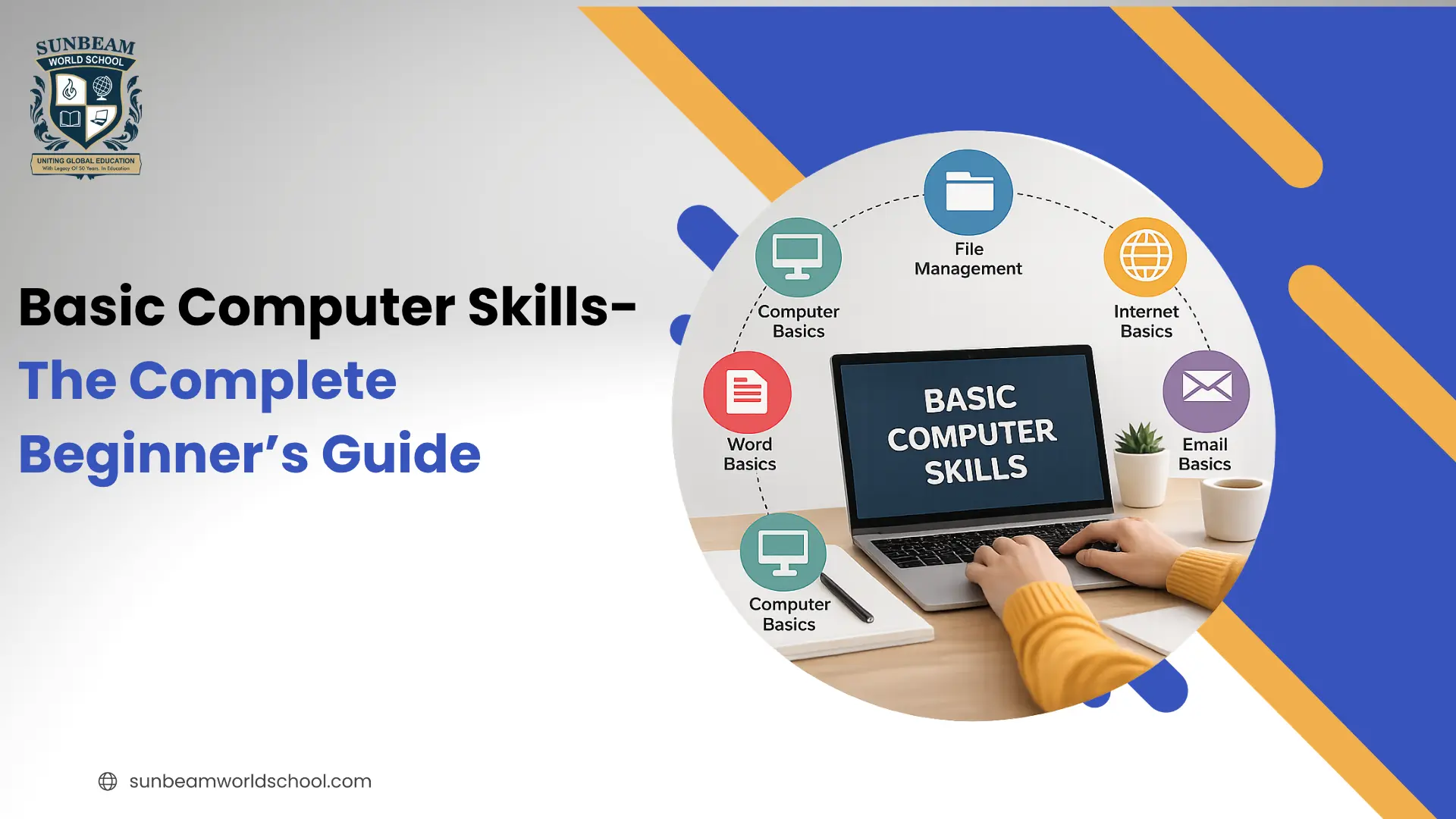
 Digital Learning
Basic Computer Skills: The Complete Beginner’s Guide to Getting Started in 2026
| Basic computer skills are the essential digital abilities needed to use computers effectively for school, work, and everyday tasks. These skills include typing, operating system navigation, file management, internet browsing, email communication, cybersecurity awareness, and using productivity software such as Microsoft Office and Google Workspace. Important beginner computer skills include understanding computer hardware, organizing files and folders, creating documents and spreadsheets, joining video meetings, using cloud storage, and practicing safe internet habits. Learning these skills improves digital literacy, productivity, communication, and career readiness. |
Whether you're a student preparing for school, a job seeker updating your resume, or an adult getting comfortable with technology for the first time, basic computer skills are no longer optional. They are the foundation of modern life.
According to the World Economic Forum, over 90% of jobs today require at least a basic level of digital literacy. Yet millions of people still feel overwhelmed when they sit down at a computer for the first time.
The good news? You don't need to be a tech genius. This guide breaks down every essential computer skill into plain, beginner-friendly language, so you can build confidence, one skill at a time.
What Are Basic Computer Skills?
Basic computer skills are the fundamental abilities needed to use a computer effectively for everyday tasks, at school, at work, or at home. Think of them as the alphabet of the digital world: once you know them, everything else becomes easier to learn.
Core areas they cover
Hardware basics
Knowing your keyboard, mouse, and monitor, and how they work together. The physical interface between you and the machine.
Operating systems
Navigating Windows, macOS, or Chrome OS. Opening apps, managing windows, adjusting settings, and shutting down properly.
Software applications
Using tools for writing (Word/Docs), data (Excel/Sheets), communication (email/Teams), and presentations (PowerPoint/Slides).
Internet browsing
Navigating websites, using search engines smartly, identifying trustworthy sources, and staying safe online.
File management
Creating, naming, organizing, saving, and retrieving digital files. Knowing file types like .docx, .pdf, .jpg, .xlsx.
These aren't advanced IT skills; they're the baseline every digital citizen needs to function confidently in a connected world.
The 15 Essential Basic Computer Skills
Master the 15 essential basic computer skills every beginner needs in 2026, from typing and file management to internet safety, email, and Microsoft Office proficiency.
1. Understanding Computer Hardware
Before you learn software, get comfortable with the physical parts of a computer:
- Monitor – the screen that displays everything
- Keyboard – used for typing text and commands
- Mouse or trackpad – used to click, select, and navigate
- CPU/Tower or Laptop body – the brain of the computer
- USB ports, charger ports, and headphone jacks – how you connect devices
Pro tip: Practice turning the computer on and off properly. Always use "Shut Down" rather than just pressing the power button; this protects your files and hardware.
2. Navigating an Operating System
An operating system (OS) is the software that runs your computer. The most common ones are:
- Windows (most common for desktops and laptops)
- macOS (used on Apple MacBooks and iMacs)
- Linux (popular in tech and programming communities)
- Chrome OS (used on Chromebooks, popular in schools)
What you should learn:
- How to open, minimize, maximize, and close windows
- How to find and use the Start Menu (Windows) or Dock (Mac)
- How to adjust basic settings like display brightness, sound, and Wi-Fi
- How to take a screenshot
3. Typing and Keyboard Shortcuts
Fast, accurate typing is one of the highest-value basic computer skills you can develop. Even a modest improvement, from 20 words per minute to 50, can double your productivity.
Beginner tips:
- Learn proper finger placement (home row: ASDF JKL;)
- Practice daily using free tools like Typing.com or Keybr.com
- Aim for accuracy before speed
Must-know keyboard shortcuts:
| Shortcut | Action |
| Ctrl + C | Copy |
| Ctrl + V | Paste |
| Ctrl + Z | Undo |
| Ctrl + S | Save |
| Ctrl + A | Select All |
| Alt + Tab | Switch between open apps |
| Windows key + L | Lock your screen |
4. File Management
If you can't find your files, you can't work efficiently. File management is the skill of creating, naming, organizing, saving, and retrieving digital files.
What to practice:
- Create folders by subject, project, or date
- Use clear, descriptive file names (e.g., Resume_2026_Final.docx instead of doc1)
- Understand file types: .docx (Word), .pdf, .jpg, .xlsx, .mp4
- Move, copy, and delete files without losing them
- Back up important files to a USB drive or cloud storage (Google Drive, OneDrive)
Key insight: Most people lose work not because of computer crashes, but because of poor file organization. Build good habits early.
5. Word Processing
Word processing is the ability to create, format, and edit text documents using software. It's used for essays, reports, letters, resumes, and more.
Popular word processors:
- Microsoft Word – the industry standard
- Google Docs – free, cloud-based, easy to share
- LibreOffice Writer – free and open-source
Core skills to learn:
- Typing and editing text
- Formatting: bold, italics, underline, font size, alignment
- Adding headings, bullet points, and numbered lists
- Inserting images and tables
- Using spell check and grammar tools
- Saving and exporting documents as PDF
6. Spreadsheets
Spreadsheets are tools for organizing numbers, data, and lists in rows and columns. They are used everywhere — from household budgets to business reports.
Popular spreadsheet tools:
- Microsoft Excel – most widely used in business
- Google Sheets – free and browser-based
Beginner skills:
- Entering data into cells
- Using basic formulas: =SUM(), =AVERAGE(), =COUNT()
- Sorting and filtering data
- Creating simple charts and graphs
Even if you never become a data analyst, knowing how to use a basic spreadsheet can set you apart in nearly any workplace.
7. Presentations
Presentation software lets you create visual slideshows for school projects, meetings, and pitches.
Popular tools:
- Microsoft PowerPoint – the most recognized presentation tool
- Google Slides – free and cloud-synced
- Canva – great for visually appealing, beginner-friendly designs
What to learn:
- Adding and formatting text on slides
- Inserting images, charts, and icons
- Applying slide themes and transitions
- Presenting in full-screen mode
8. Internet and Web Browsing Skills
The internet is your gateway to information, communication, and countless services. But using it effectively is a skill, not just a habit.
Core internet skills:
- Understanding URLs and how to navigate to websites
- Using search engines (Google, Bing) with smart search terms
- Evaluating whether a website is trustworthy (look for .gov, .edu, or well-known organizations)
- Using bookmarks to save important pages
- Understanding the difference between HTTPS (secure) and HTTP (not secure)
Smart searching tips:
- Use quotes to search exact phrases: "basic computer skills for beginners"
- Add site: to search within a specific website
- Use - to exclude words from results
9. Email Communication
Email remains one of the most important communication tools in professional life. Knowing how to use it properly signals professionalism and reliability.
What to learn:
- Composing, replying to, and forwarding emails
- Using CC (Carbon Copy) and BCC (Blind Carbon Copy) correctly
- Attaching files to emails
- Organizing your inbox with folders and labels
- Recognizing spam and phishing emails (never click unknown links)
Professional email tips:
- Always include a clear subject line
- Keep your message concise and polite
- Proofread before sending
- Respond to important emails within 24 hours
10. Online Safety and Cybersecurity Basics
As more of our lives move online, staying safe has become a core computer skill. Cybercrime affects millions of people every year, and most of it targets people who didn't know the warning signs.
Essential safety practices:
- Use strong, unique passwords for every account (use a password manager)
- Enable two-factor authentication (2FA) wherever possible
- Never share personal information on suspicious websites
- Keep your operating system and antivirus software updated
- Back up your data regularly (the 3-2-1 rule: 3 copies, 2 different media, 1 offsite)
Warning signs of a phishing attack:
- Urgent or threatening language ("Your account will be closed!")
- Misspelled sender email addresses
- Links that don't match the website they claim to be from
- Requests for passwords or credit card information
11. Digital Communication and Collaboration Tools
The modern workplace and classroom rely heavily on real-time digital communication.
Must-know tools:
- Zoom / Google Meet / Microsoft Teams – video calls and virtual meetings
- Slack / Microsoft Teams – team messaging and project communication
- Google Drive / Dropbox / OneDrive – cloud storage and file sharing
Skills to develop:
- Joining and hosting video calls professionally (mute when not speaking, use a quiet background)
- Sharing your screen
- Collaborating on shared documents in real time
- Using comments and tags to communicate within documents
12. Cloud Storage and Backup
Cloud storage means saving your files on the internet, not just on your computer, so you can access them from any device and protect them from loss.
Popular cloud services:
- Google Drive – 15GB free with a Google account
- Microsoft OneDrive – integrated with Windows
- iCloud – built into Apple devices
- Dropbox – widely used for business file sharing
Why it matters: A laptop can be lost, stolen, or crash. But files saved in the cloud are always recoverable. Make backing up your data a weekly (or automatic) habit.
13. Basic Troubleshooting
Computers don't always work perfectly, and knowing how to diagnose and fix simple problems saves time and stress.
Common fixes every beginner should know:
- Restart your computer – solves 80% of random problems
- Clear your browser cache – fixes slow or broken websites
- Check your Wi-Fi connection – turn it off and on, or restart your router
- Update your software – outdated apps often cause crashes and security issues
- Free up storage space – computers slow down when the hard drive is nearly full
- Google the error message – whatever error you see, someone else has had it too
Golden rule of tech support: When in doubt, restart first.
14. Introduction to Programming (Optional but Valuable)
You don't need to become a programmer to benefit from understanding the basics of coding. Even a surface-level understanding of how software works can make you a more effective computer user — and a stronger job candidate.
Beginner-friendly languages and tools:
- Scratch (scratch.mit.edu) – visual, block-based coding for absolute beginners
- Python – simple, readable, and widely used in data, automation, and AI
- HTML/CSS – the building blocks of websites
Free learning resources:
- Khan Academy (khanacademy.org)
- freeCodeCamp (freecodecamp.org)
- Codecademy (codecademy.org)
15. Microsoft Office and Google Workspace Proficiency
These two productivity suites are the industry standard across almost every sector. Proficiency in them is one of the most commonly requested skills in job listings worldwide.
Microsoft Office core apps:
| App | Primary Use |
| Word | Document creation and editing |
| Excel | Data, calculations, and analysis |
| PowerPoint | Presentations and visual content |
| Outlook | Email and calendar management |
| Teams | Communication and collaboration |
Google Workspace core apps:
| App | Primary Use |
| Docs | Cloud-based word processing |
| Sheets | Cloud-based spreadsheets |
| Slides | Cloud-based presentations |
| Gmail | Email management |
| Drive | File storage and sharing |
Tip: Google Workspace is entirely free with a Google account, making it the best starting point for beginners who don't have Microsoft Office.
How to Learn Basic Computer Skills: A Step-by-Step Plan
Feeling overwhelmed? Start here. This 4-week beginner plan will get you up and running:
Week 1 – Hardware & Operating System
- Learn what each hardware component does
- Practice opening and closing apps, adjusting settings, and shutting down properly
Week 2 – Typing, File Management & Email
- Spend 15 minutes daily on a typing practice app
- Create a clear folder structure for your documents
- Send your first professional email
Week 3 – Word Processing & Internet Skills
- Write and format a one-page document in Google Docs or Word
- Practice smart searching and evaluating online sources
Week 4 – Spreadsheets, Communication Tools & Safety
- Build a simple budget or list in Google Sheets or Excel
- Join a free Zoom call or watch a tutorial on collaboration tools
- Enable 2FA on your most important accounts
Free Resources to Learn Basic Computer Skills
Here are the best free platforms to continue learning:
- GCFGlobal.org – Comprehensive, beginner-friendly tutorials on every essential computer skill
- Khan Academy – Covers computing, internet safety, and programming
- Microsoft Learn – Free official tutorials for all Office apps
- Google Digital Garage – Free courses on digital skills and online tools
- Typing.com – Free typing practice with progress tracking
- YouTube – Search any skill + "tutorial for beginners" for instant lessons
Common Mistakes Beginners Make With Computer
- Not saving work frequently- Use Ctrl + S constantly, or enable auto-save in your apps.
- Using weak passwords- Never use "123456" or your name. Use a mix of letters, numbers, and symbols.
- Ignoring software updates- Updates often contain critical security patches. Don't postpone them.
- Not backing up files- One hardware failure can wipe years of work. Use cloud storage and external drives.
- Clicking suspicious links- If an email or website feels off, trust your instincts. Don't click.
Conclusion
Learning basic computer skills is one of the most valuable investments you can make for your education, career, and everyday life. From typing and managing files to using productivity tools and staying safe online, these foundational skills open the door to better opportunities and greater digital confidence.
The key is to start small, practice consistently, and focus on building one skill at a time. You do not need to become a technology expert overnight. Even simple improvements in digital literacy can make studying easier, improve workplace productivity, and help you communicate more effectively in today’s connected world.
As online learning and digital education continue to grow, institutions like Sunbeam World School are helping students develop the technology and digital literacy skills needed to succeed in modern education and future careers. With the right guidance and regular practice, anyone can become comfortable and confident using computers in 2026 and beyond.

Frequently Asked Questions
What are the most important basic computer skills for getting a job?
-Employers most commonly look for proficiency in Microsoft Office (Word, Excel, Outlook), email communication, internet research, and basic file management. Cloud tools like Google Workspace are also increasingly expected.
How long does it take to learn basic computer skills?
+Can I learn basic computer skills for free?
+What is the easiest computer skill to learn first?
+Are basic computer skills different for students vs. professionals?
+What's the difference between computer skills and digital literacy?
+
In this article
Share this post:


Press and Blogs
Stay updated with our press releases, educational blogs, and more.

Quick Summary The most common words that start with I include ice, idea, image, important,...

Quick Summary The most common words that start with Z include zoo, zero, zone, zebra,...

Quick Summary The most common words that start with X include xylophone, x-ray, xenon, xerox,...